
In short
- Last Printer Used is the simplest built-in option for a consistent home-and-office routine.
- A fixed default is predictable but may point to an unreachable printer after you move.
- Availability-based priorities are better when you have backups or more than one printer at a location.
Understand the built-in macOS behavior
Apple’s Last Printer Used option remembers the printer used most recently at your current network location. In a simple setup, that can be enough: print to the office device once while at work and the home device once while at home, then let macOS recall those choices.
The important word is last. macOS is remembering history, not evaluating a preferred order. If you temporarily use another office printer, that printer can become the next one selected for that location.
Option 1: use Last Printer Used
- Install both printersAdd the home and office printers in System Settings > Printers & Scanners while each is reachable.
- Enable Last Printer UsedChoose Last Printer Used from the Default printer menu.
- Establish the choice at homeOn your home network, print one document to the home printer.
- Establish the choice at workOn the office network, print one document to the office printer.
- Verify before relying on itOpen a fresh Print dialog at each location and confirm the expected printer is selected.
This approach requires no extra software. It works best when there is one ordinary printer per location and you rarely select anything else.
Where Last Printer Used becomes fragile
- You sometimes use a label, photo, receipt, or secure-release printer.
- The preferred office printer is frequently offline or busy.
- Several office printers are reachable, but one should always win.
- A shared printer disappears when the Mac hosting it sleeps.
- You want a backup selected before opening the Print dialog.
A fixed default has the opposite trade-off: it never follows an accidental one-off choice, but it can remain pointed at your office printer after you arrive home. Neither built-in mode combines availability with a user-defined preference order.
Option 2: use an availability-based priority list
A priority list describes intent rather than history. For example: office colour printer first, office monochrome printer second, home printer third. At home, the office devices are unavailable, so the home printer becomes the best available choice. At work, the higher-priority office device takes over when reachable.
- Add printers in macOS firstThe printers must appear in Printers & Scanners before a utility can manage their default status.
- Order everyday printersPut the printer you normally want first, followed by acceptable fallback printers.
- Exclude specialist devicesKeep printers that should never become automatic defaults outside the eligible list.
- Test each environmentConfirm the selected default at home, at work, and with the preferred printer temporarily unavailable.
You do not need location tracking
A printer can be chosen from availability alone. When office printers are not reachable from the current network and the home printer is reachable, the set of available printers already provides the signal needed to make a decision.
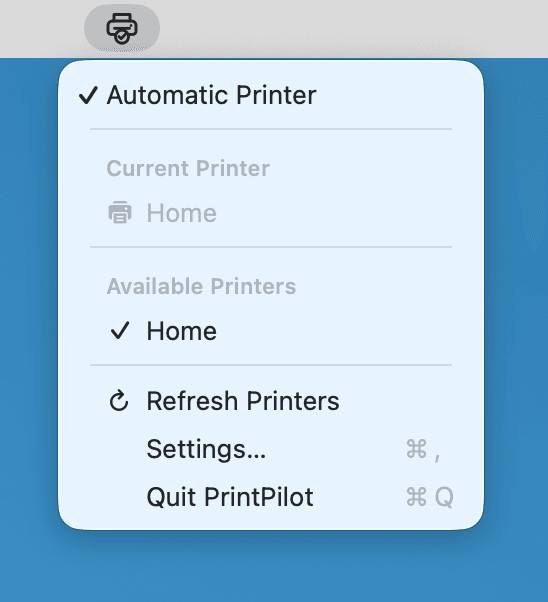
PrintPilot follows this model. It does not need your physical location or Wi-Fi network name to choose among printers. It reads the printers installed on the Mac, checks which eligible options are available, and applies your priority order.